How Studybox works
Running your class in Studybox
From the first sign-in to reading every child's answers. Each step shows the real screens, from a demo school with made-up students.
Set up the school, or join with a code
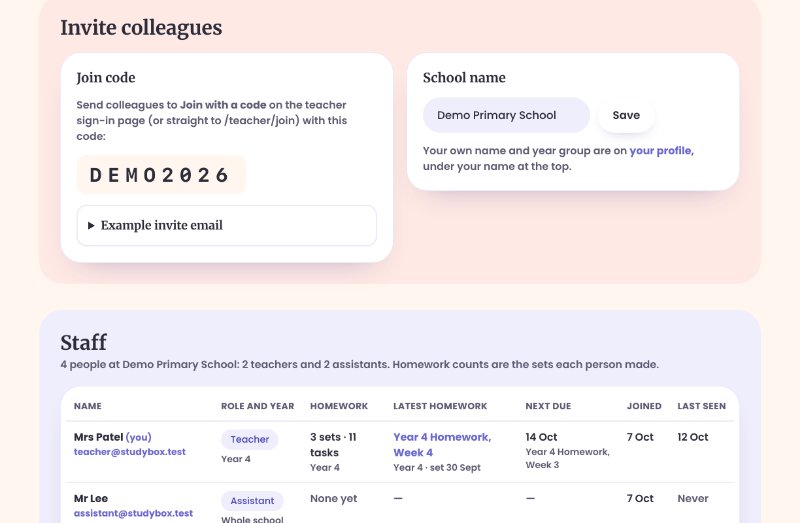
The first teacher starts the school from the teacher sign-in page. Everyone after that uses Join with a code: the code is under Invite colleagues on the School page, with an example email to copy or open in your email app. Joining creates their account too. Share it only with colleagues.
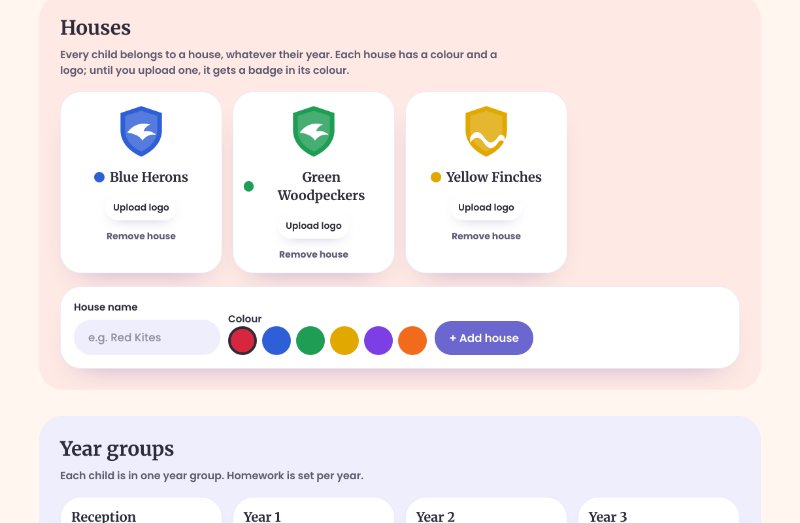
The School page is also where you add houses (each with a colour, and a logo if you upload one) and year groups. Every child belongs to one year group and one house. The Staff table shows everyone who has joined, their role and year, and the homework they've set.
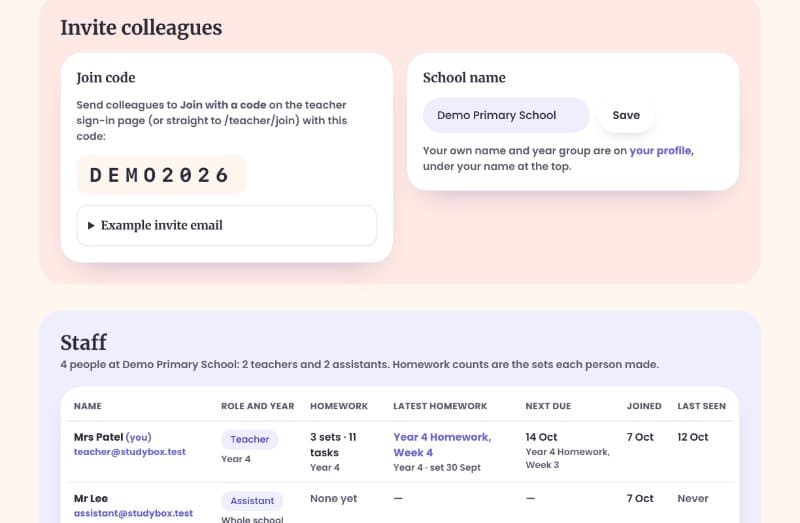
Invite colleagues: the join code and an example email 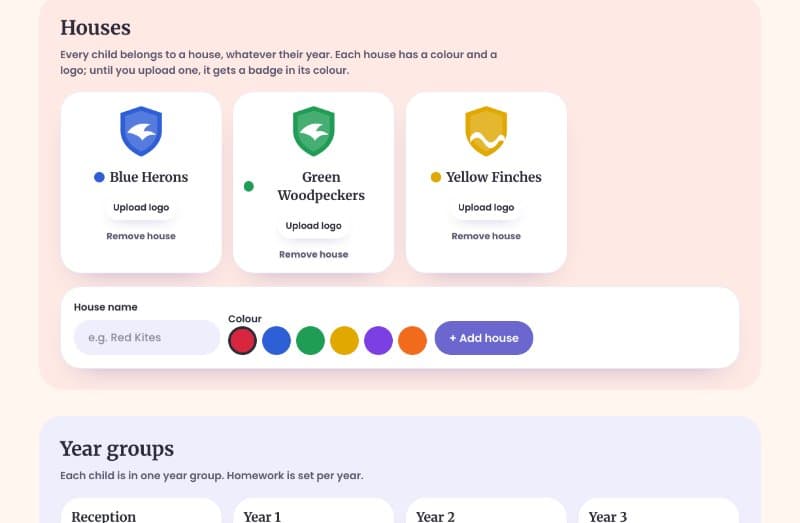
Houses, each with a colour and a badge Your Dashboard: one year group at a time
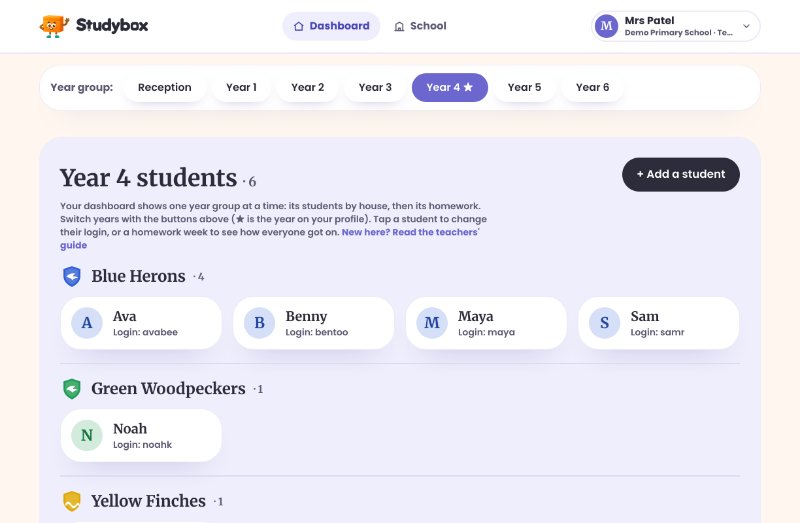
Switch years with the buttons at the top; the star is the year on your profile, which the Dashboard opens on. Every member of staff can see every year.
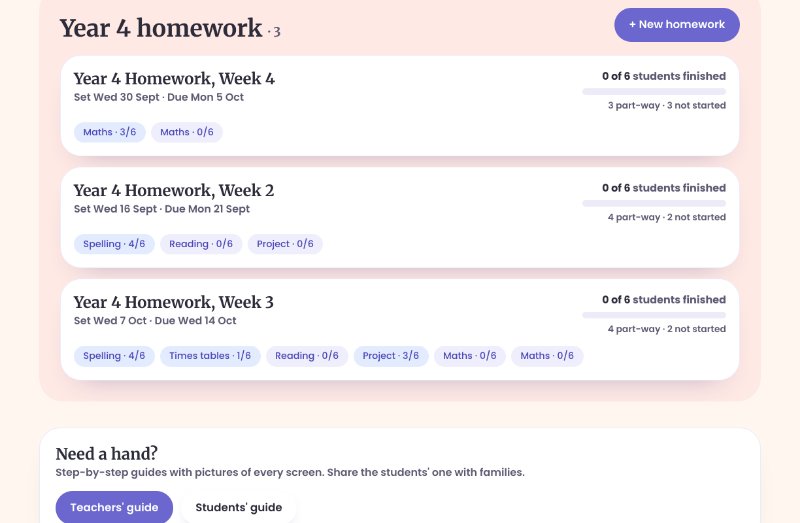
Students are listed by house, and the year's homework is underneath: each week shows how many students have finished, how many are part-way, and how many have done each task.
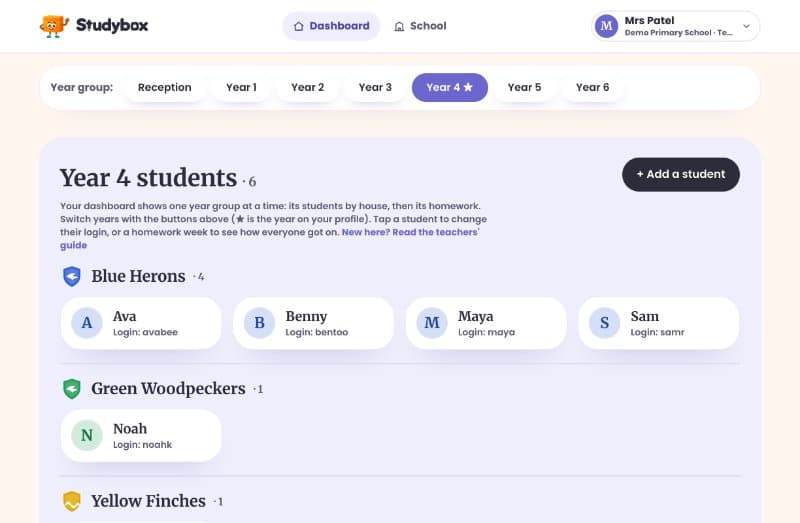
Year 4's students, by house 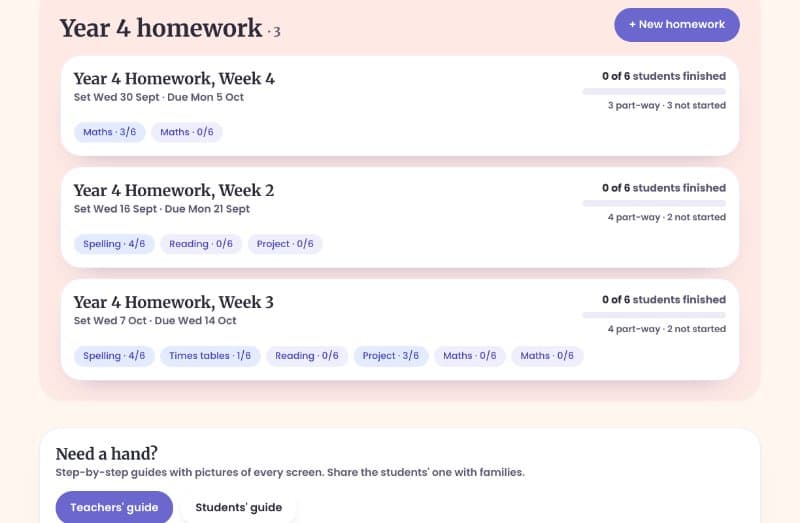
Year 4's homework weeks and how far everyone has got Add students and their logins
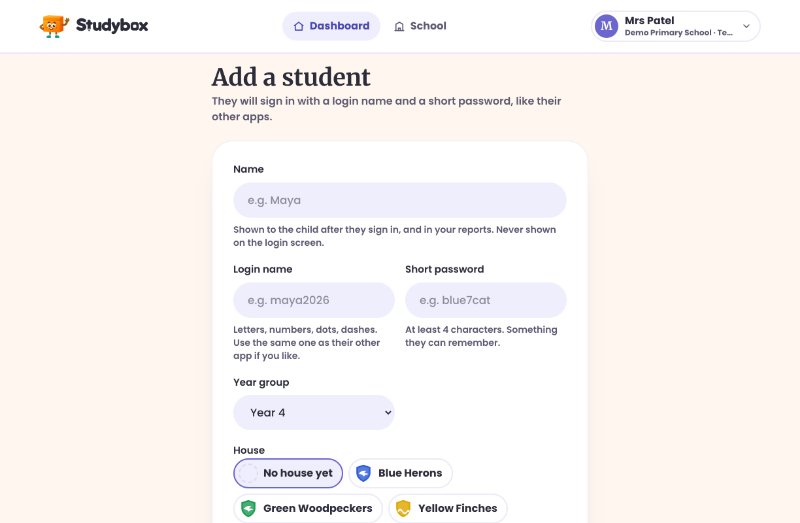
+ Add a student asks for their name, a login name, a short password, their year group and their house. Students sign in on the Studybox home page with the login name and password; their names are never shown on the sign-in screen.
Forgotten password? Tap the student on the Dashboard to change their login name or set a new password.
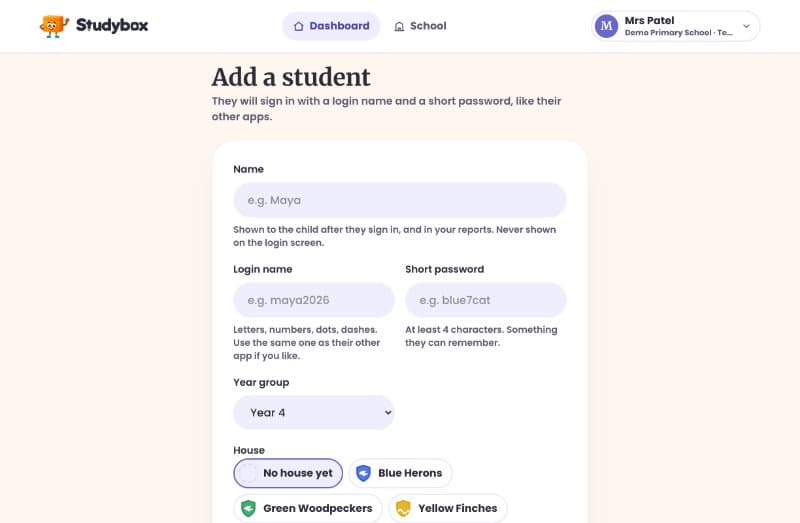
Adding a student: name, login name, short password, year and house Import the week's homework from a PDF
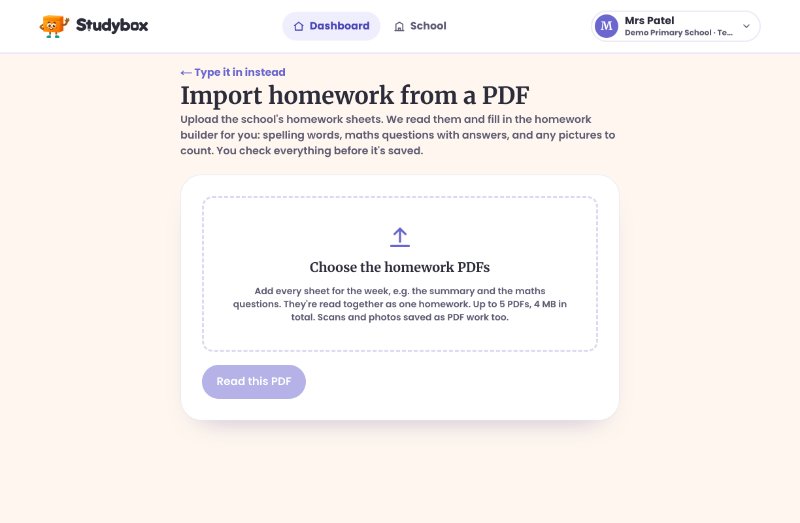
From the Dashboard choose + New homework, then Import it. Add every sheet for the week (for example the summary sheet and the maths sheet): up to 5 PDFs, 4 MB in all. Scans and photos saved as PDF work too.
Studybox reads them together and fills in the homework for you: the spelling words, every maths question with its answer, pictures to count, the reading task and any project. Nothing is saved until you check it on the next page.
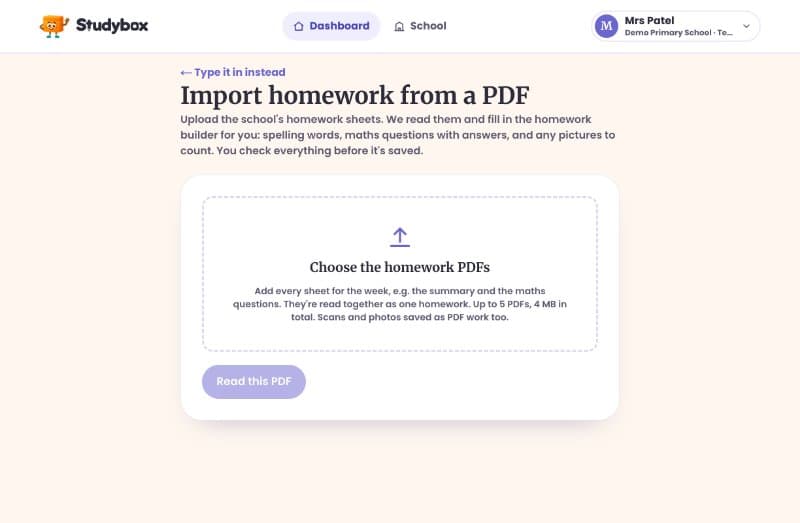
Importing the week's homework sheets as PDFs Check it, then save
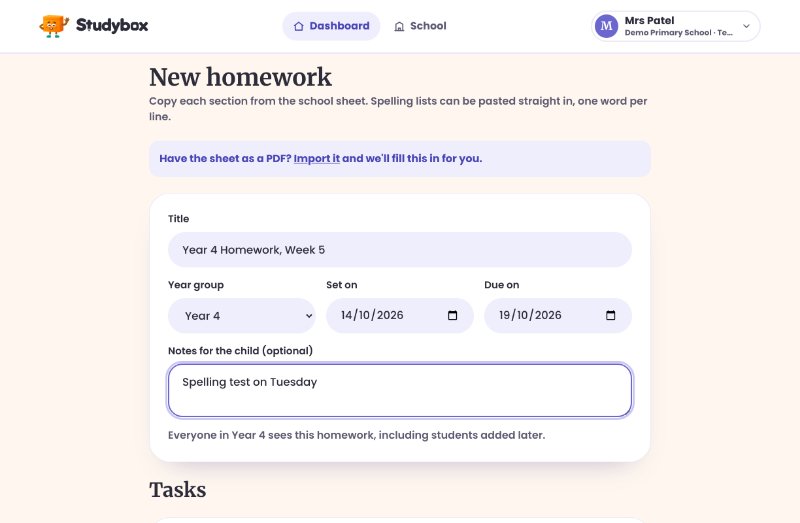
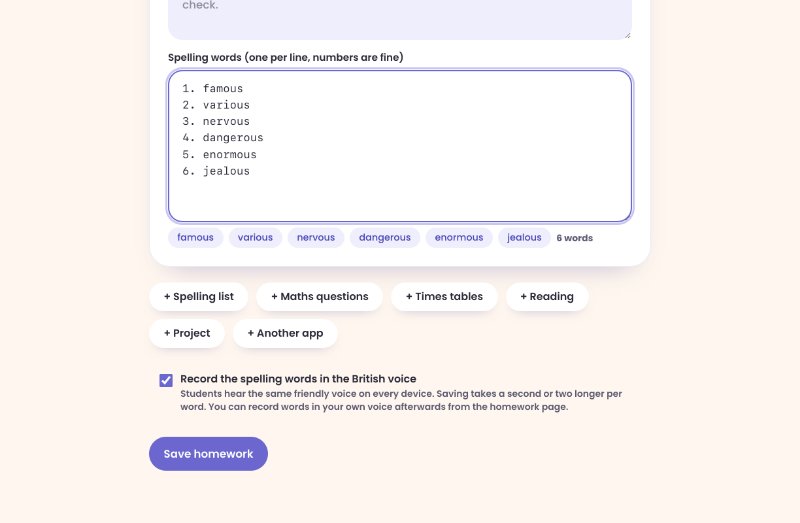
The homework builder shows what was read from the sheets, or starts blank if you'd rather type it in. Give it a title, the year group and the dates, then check each task. Spelling lists can be pasted one word per line; numbers are fine.
Leave Record the spelling words in the British voice ticked and saving also records each word in a friendly British voice, so every student hears the same voice on any device. It adds a second or two per word. Then Save homework: everyone in the year sees it straight away, including students added later.
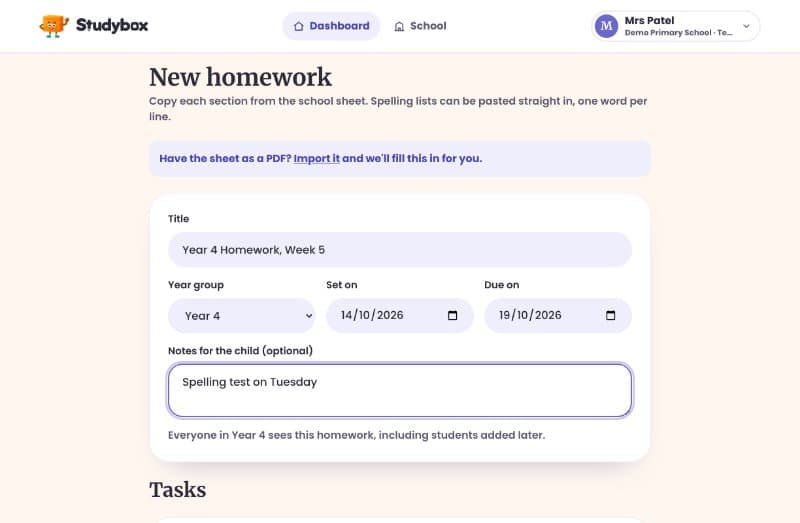
The homework's title, year group and dates 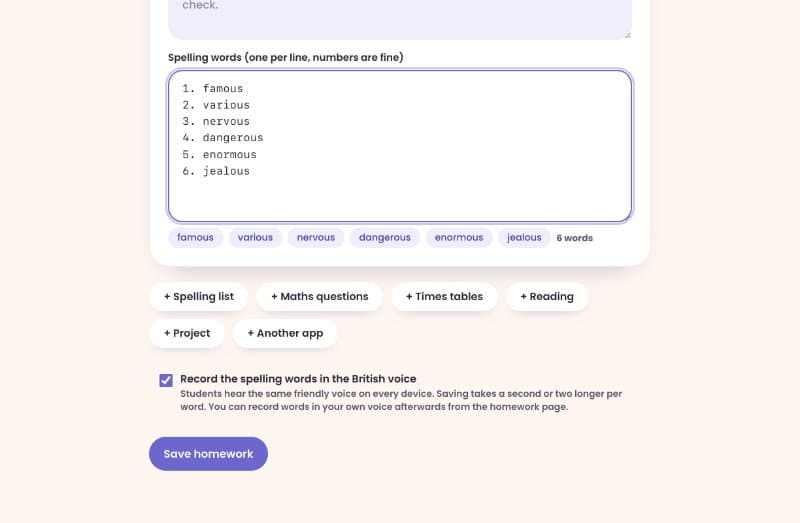
The spelling words, the British voice tick box and Save See the week at a glance
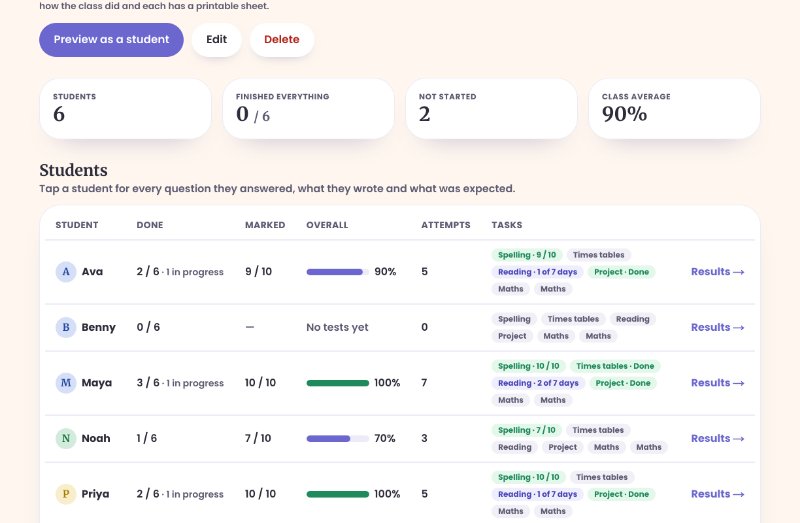
Open a homework week from the Dashboard. The top shows the class: how many students, how many have finished everything, how many haven't started, and the class average on marked work.
Below is a row per student with tasks done, marked answers, their overall score, their attempts and a coloured pill for each task. Underneath are the tasks themselves, each with how the class did and a Printable sheet.
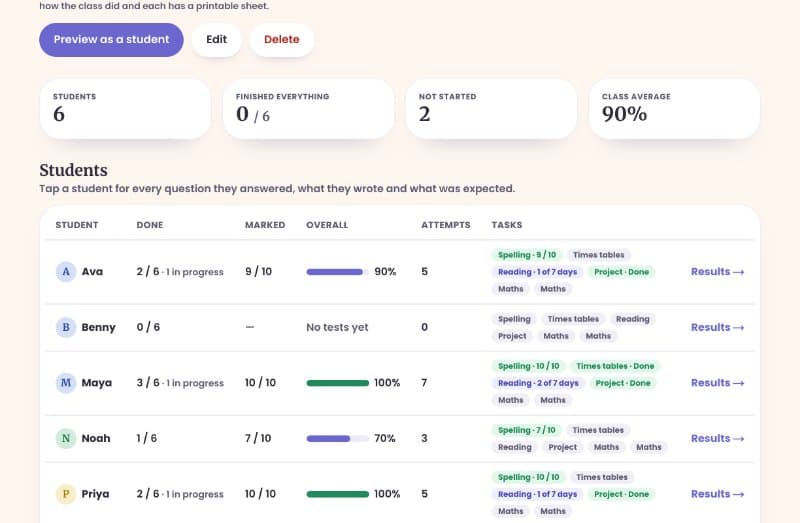
A homework week: class figures and a row per student Choose how students hear spelling words
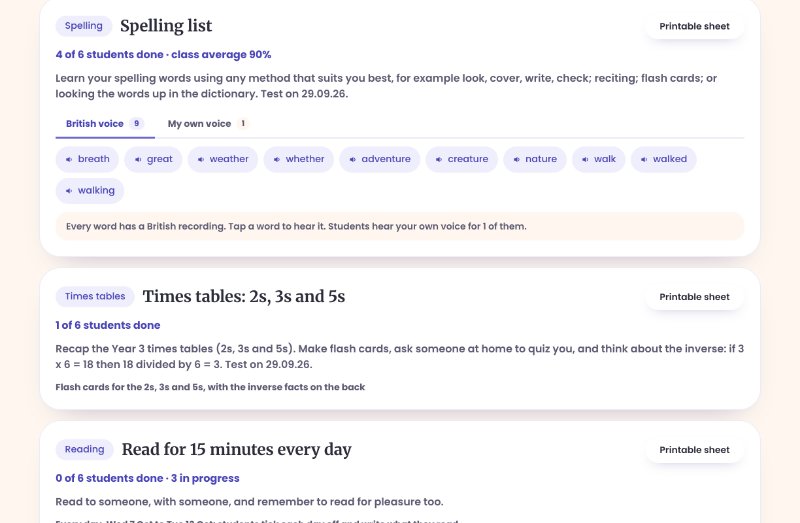
Each spelling task has two tabs. British voice plays the recorded British voice for every word: tap a word to hear it. If any words haven't been recorded yet, Record the words (or Record the other …) does them in one go.
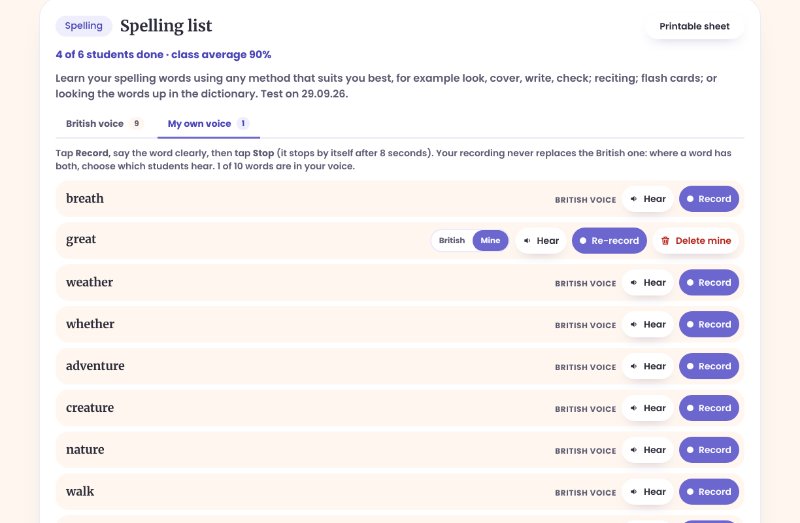
My own voice lets you record words yourself: tap Record, say the word, then Stop (it stops by itself after 8 seconds). Your recording never replaces the British one. Where a word has both, the British | Mine switch chooses which students hear, and Delete mine removes your recording and goes back to the British voice. Words with no recording at all use the student's device voice.
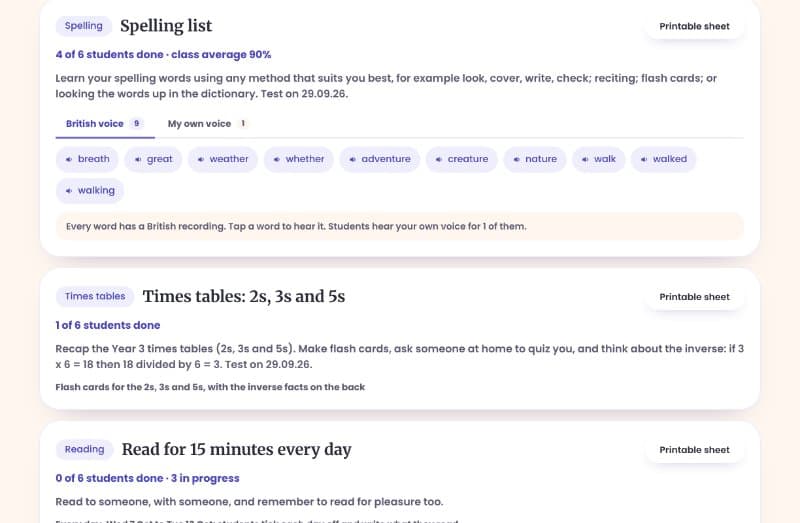
British voice: tap a word to hear it 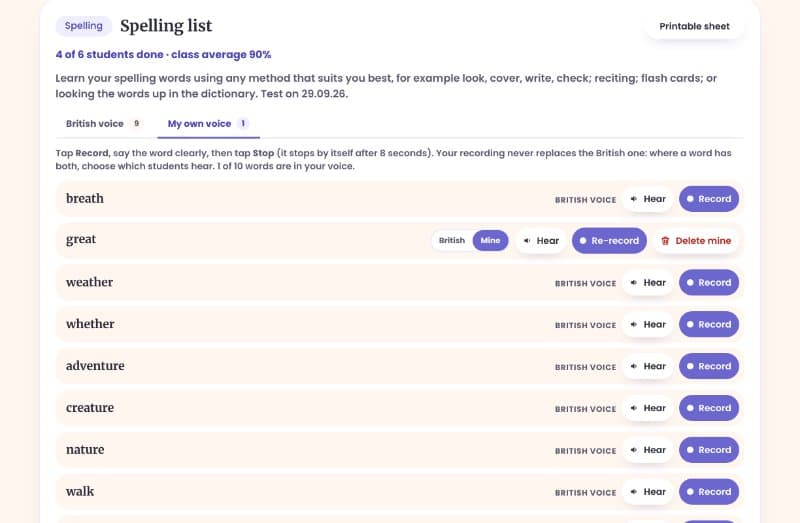
My own voice: record, re-record, and switch between the two Times tables: flash cards
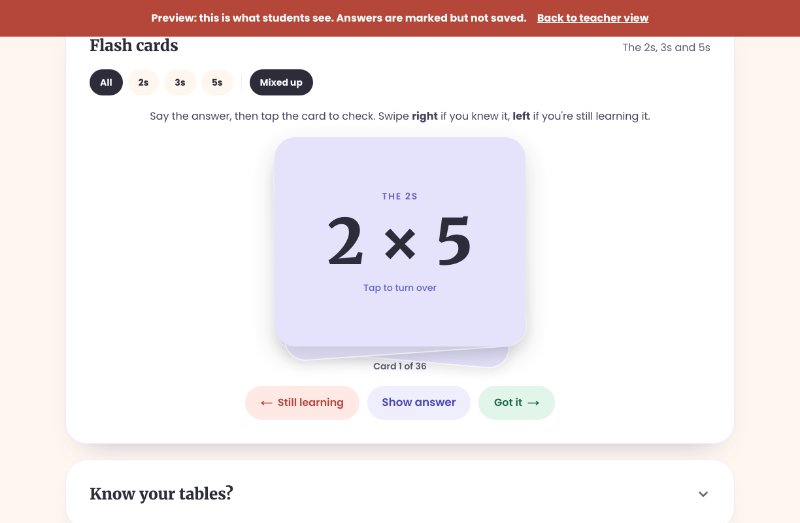
Times-tables tasks open with a stack of flash cards for the tables named in the instructions, such as “the 3s and 6s”. To change the tables, change the wording of the instructions.
Students say the answer, tap the card to turn it over (the back shows the answer and the inverse facts), then swipe right if they knew it or left if they're still learning it. At the end they can go round again with just the ones they're still learning. Going through 10 cards ticks the task off.
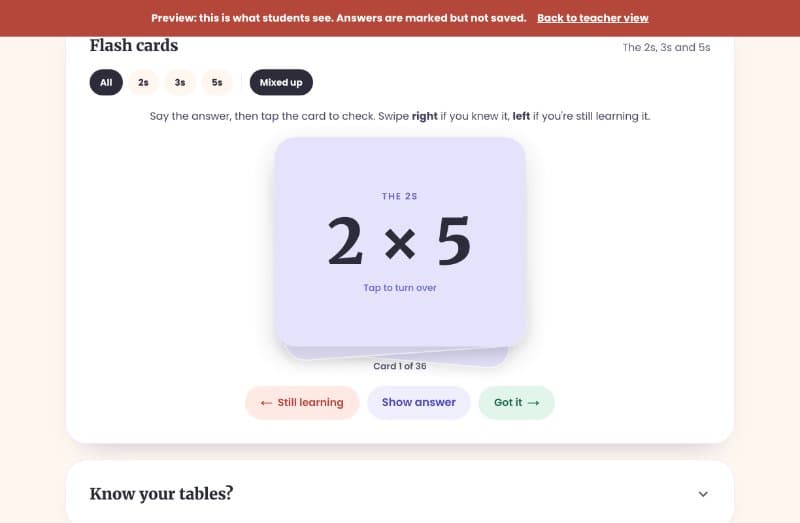
A student's flash cards for the 2s, 3s and 5s Preview as a student
Preview as a student, at the top of a homework week, opens the week exactly as a child sees it. Try every task: answers are marked so you can see what students will see, but nothing is saved.
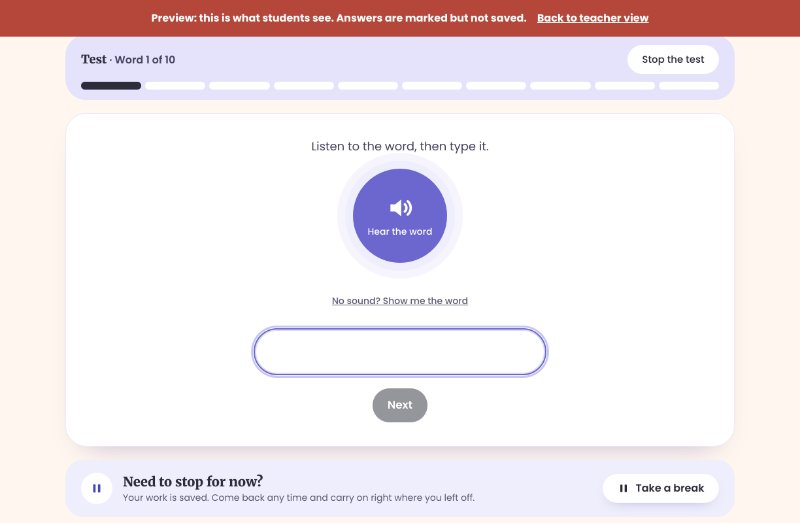
In the spelling test, students tap Hear the word (in the voice you chose) and type what they hear.
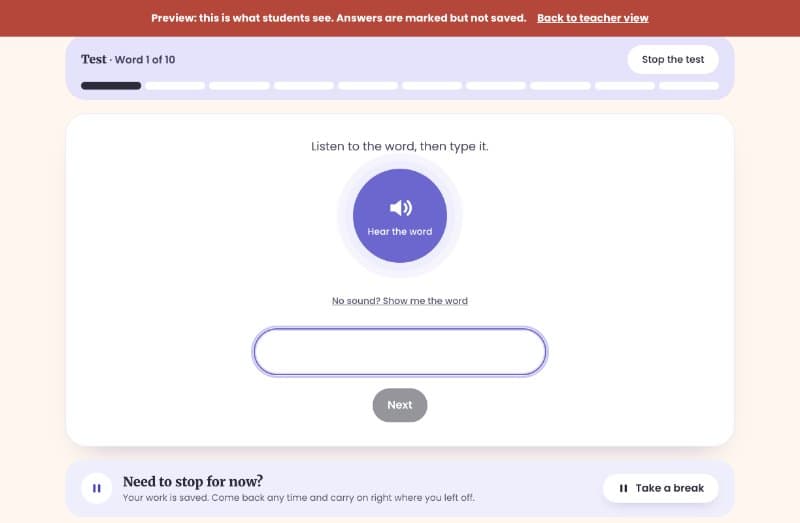
The spelling test, as a student sees it Open a student for every answer
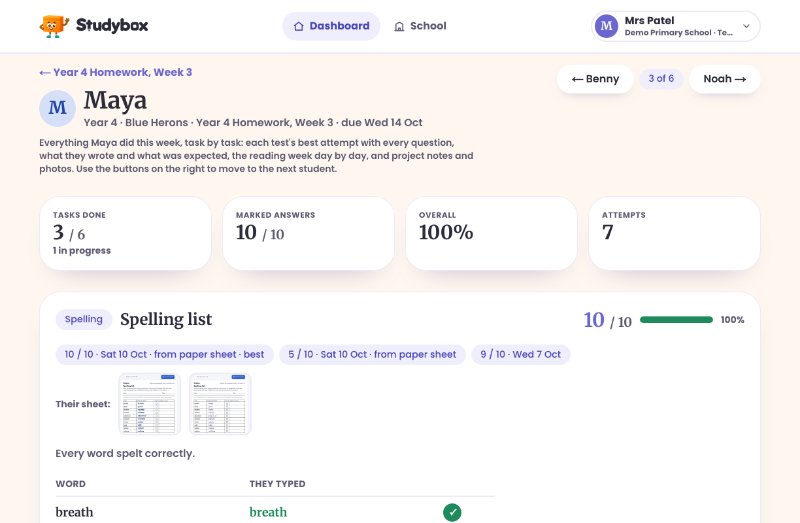
Tap a student on the homework page to see their whole week: each test's best attempt and their other attempts, every word or question with what they wrote, the reading week day by day, and project notes and photos. Use the buttons at the top right to move through the class.
Students who did the work on paper can photograph their finished sheet. Studybox reads it and marks it; those attempts say from paper sheet, and the photos are there to check.
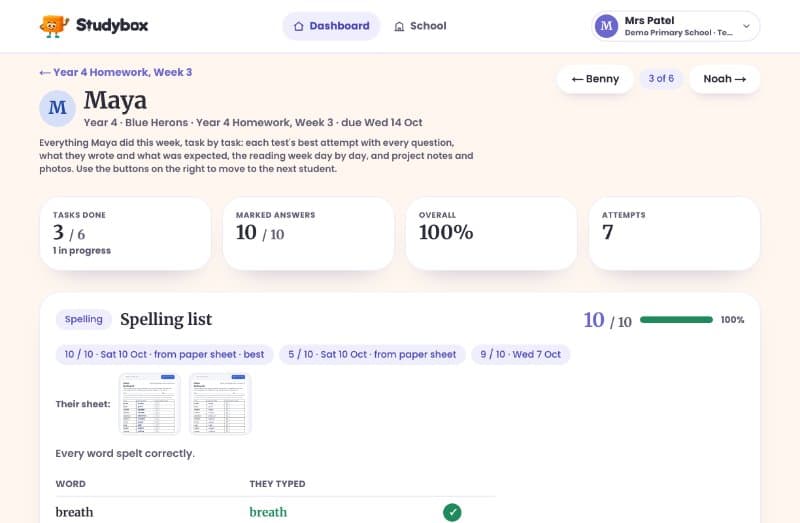
One student's week, starting with their spelling attempts Maths: what they wrote against what was expected
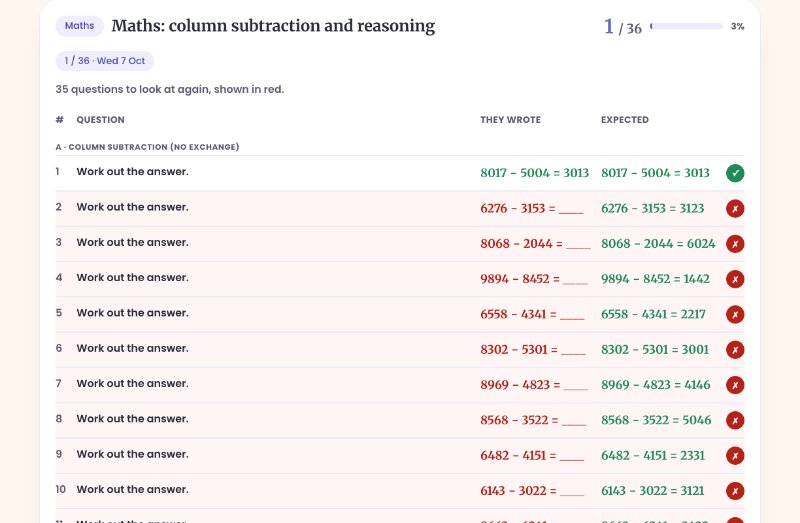
Maths is marked automatically. Each question shows the student's answer next to the expected one, with wrong answers in red, so a slip in one digit is easy to spot. Any working or explanation they typed sits under the question.
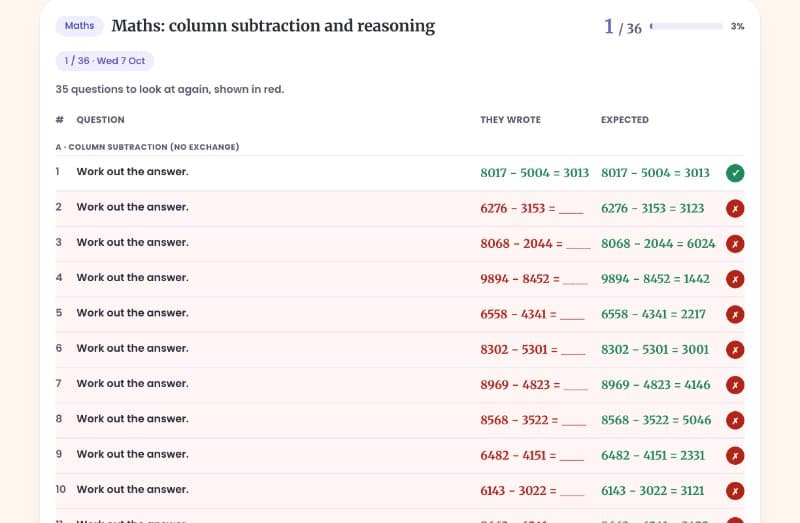
Maths results: each answer next to the expected one Reading: the week day by day
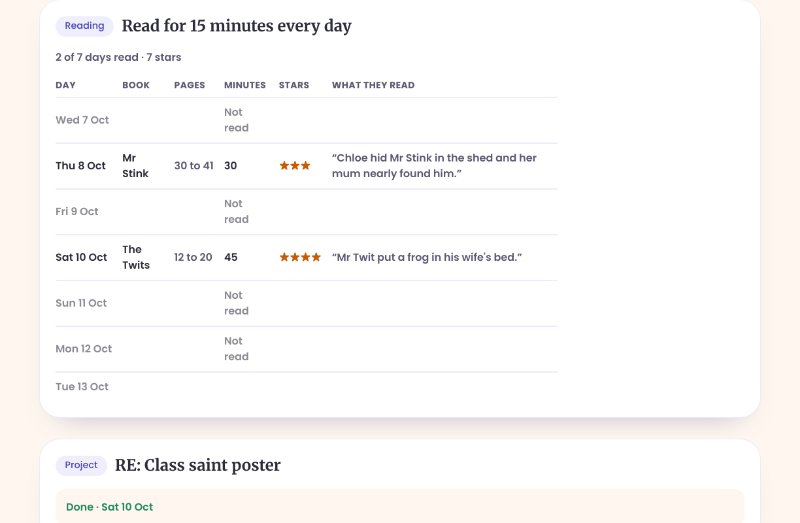
Reading is ticked off day by day, over a week of seven days; reading on 5 of the 7 days counts as done. For each day you see the book, the pages, the minutes read (students can use the reading timer to earn stars) and a sentence about what they read.
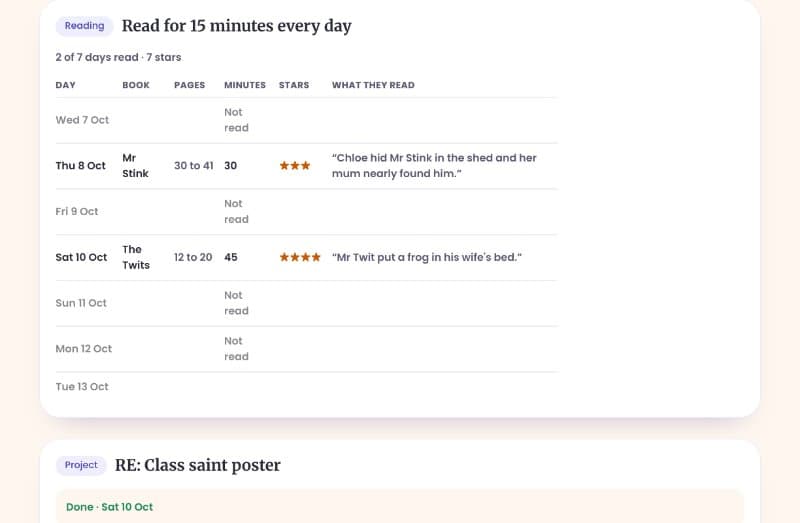
A student's reading week Missed a sheet? Add it later
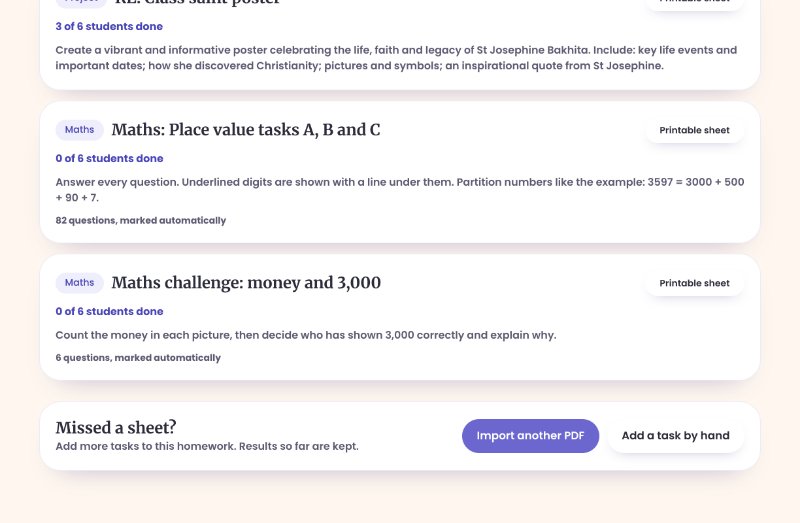
At the bottom of a homework week, Import another PDF or Add a task by hand adds tasks to the week. Results so far are kept. If the new sheet completes a task nobody has started yet (say, the maths questions for a maths task saved without them), it replaces that task instead of adding a second one.
Spotted a mistake? Edit, at the top of a homework week, corrects the title, instructions, spelling words and maths questions. Tasks a student has started can't be removed or change type.
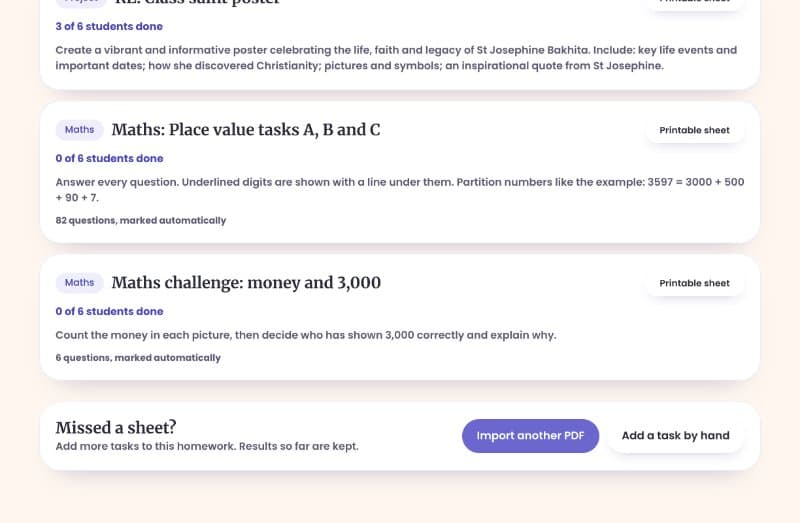
Adding a missed sheet to a homework week Print a sheet for any task
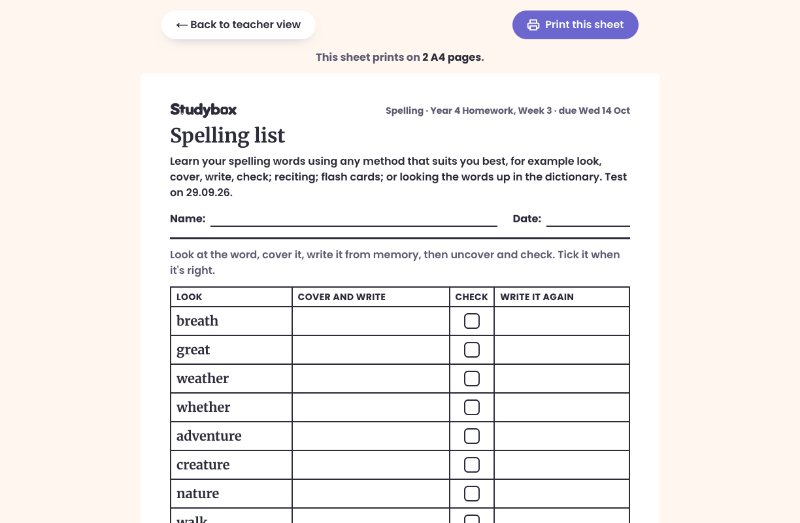
Every task has a printable version made for that kind of work: a look-cover-write-check sheet for spellings, the maths questions with room for working, a reading log for the week, a project planner, or a times-table grid.
Use Printable sheet on the homework page. Students can print their own from the task page too.
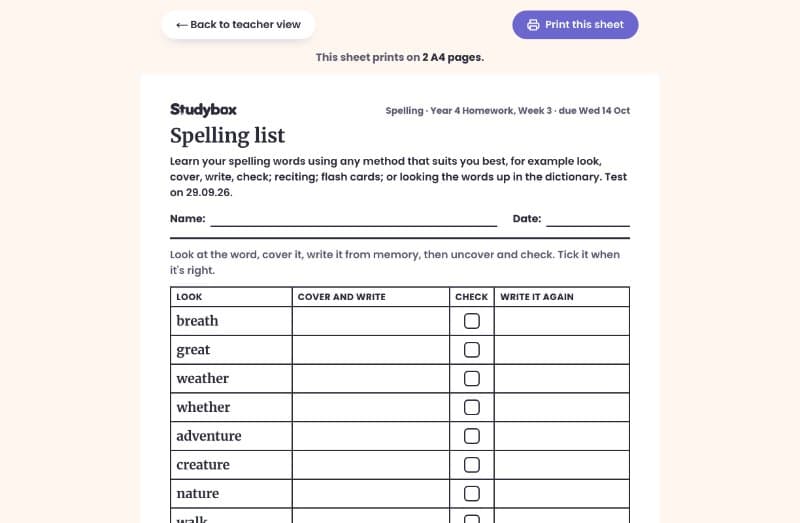
The printable spelling sheet On your phone
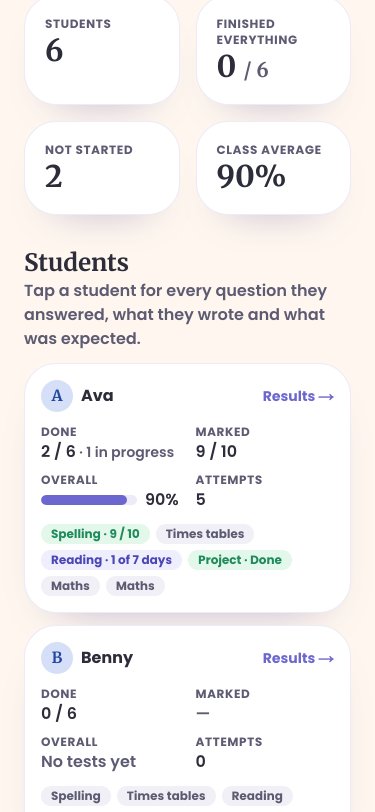
Everything works on a phone or tablet. On a narrow screen the student table becomes a card per student, with the same figures and task pills.
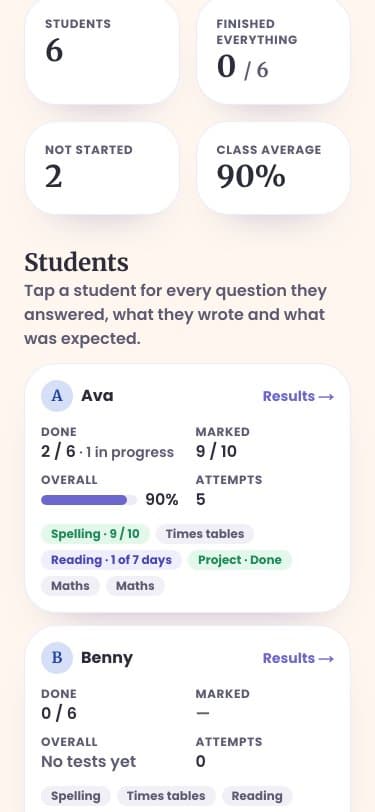
A homework week on a phone Your profile
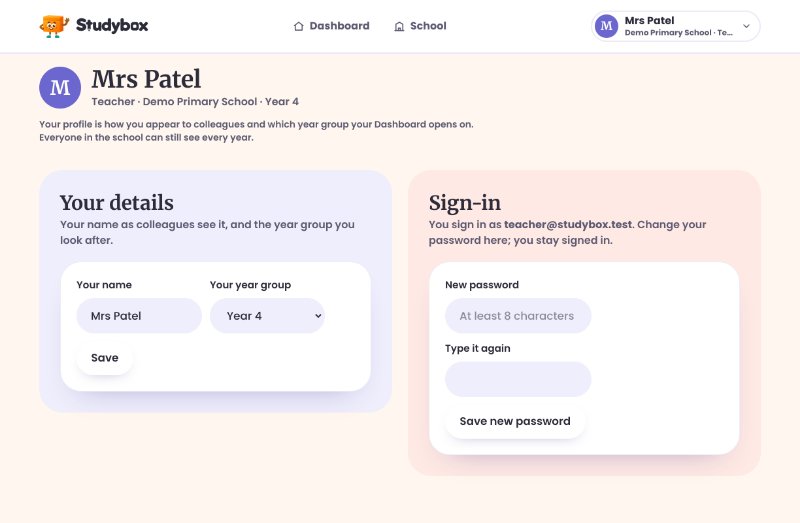
Under your name at the top right: My profile for your name, the year group you look after (which your Dashboard opens on) and your password, plus Sign out.
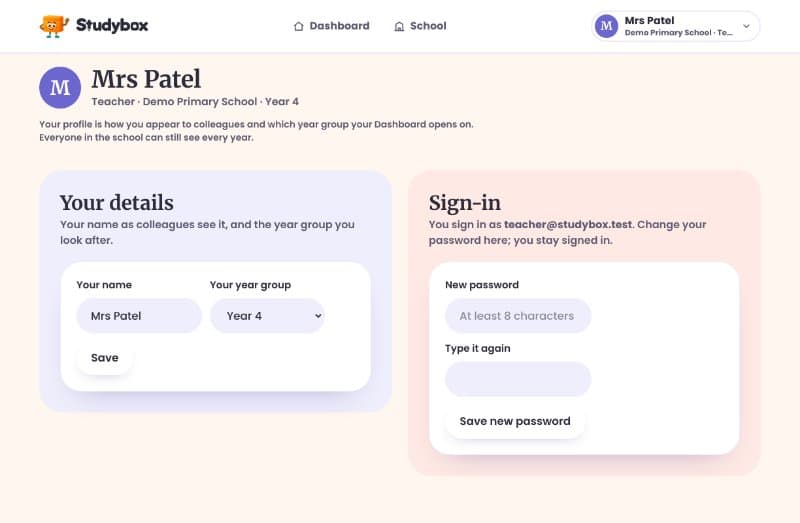
Your profile: your details and sign-in
Something not covered here? Ask a teacher, or see what students see.