How Studybox works
Doing your homework in Studybox
Sign in, pick a task, play with the crew. Here's what each screen does.
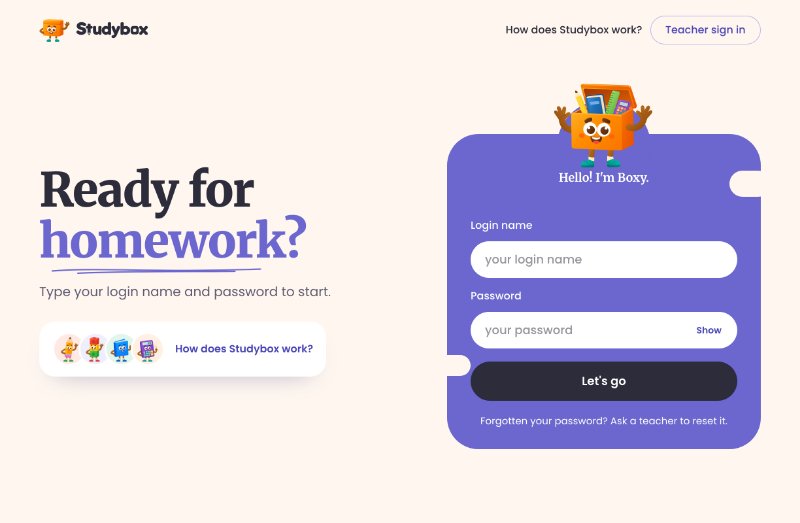
Sign in with your login name
Your teacher gives you a login name and a short password. Type them in and tap Let's go.
Forgotten it? Ask your teacher and they can set a new one. There's nothing to download: Studybox works in the browser on a tablet, phone or computer.
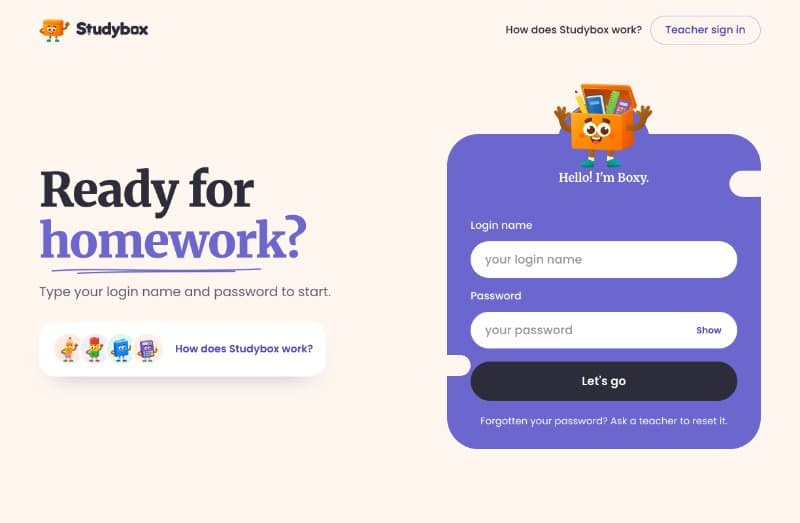
The sign-in screen with Boxy This week's homework is on your home page
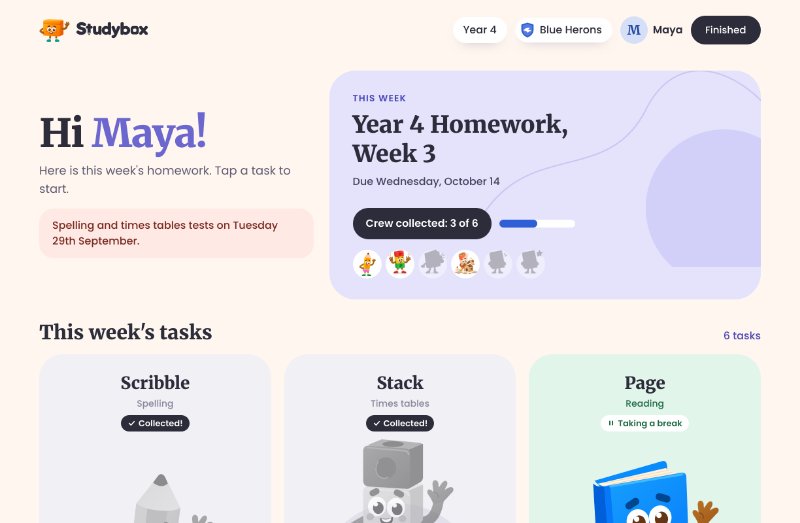
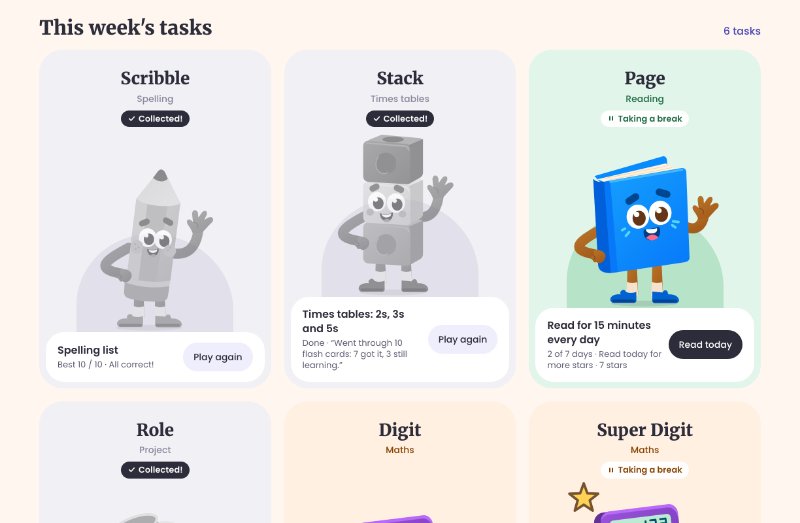
The top of the page shows this week's homework, when it's due, and how many of the crew you've collected. Every task is a card with its own crew character. Tap a card to start.
When you finish a task you collect that character and its card turns grey, so you can see what's left. Tasks you've started say Taking a break so you know where to carry on. Earlier weeks sit underneath, so you can go back and have another go at anything.
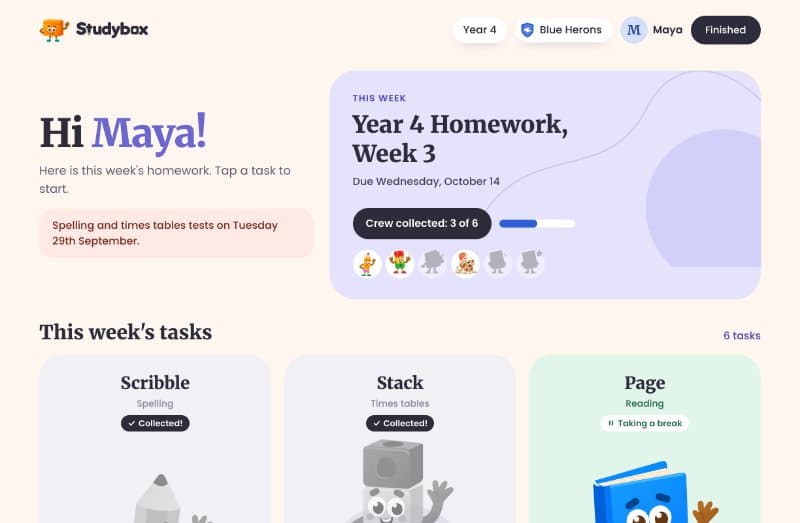
This week's homework and the crew you've collected 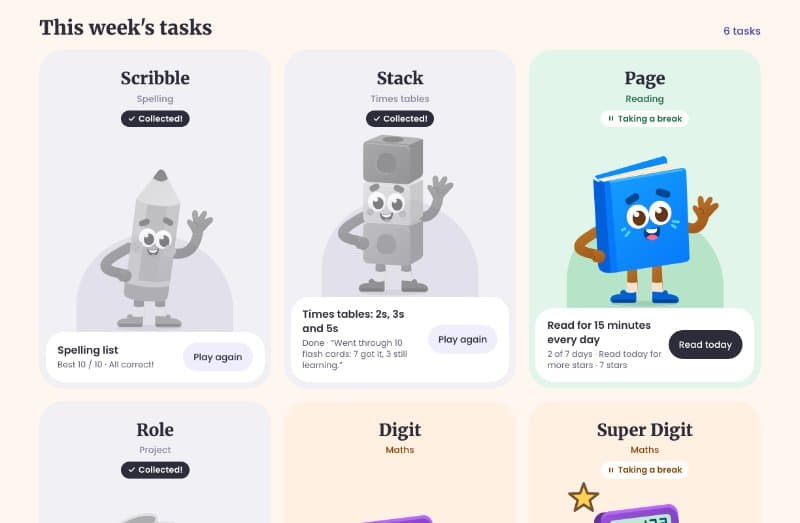
A card for every task Spelling: hear the words and practise
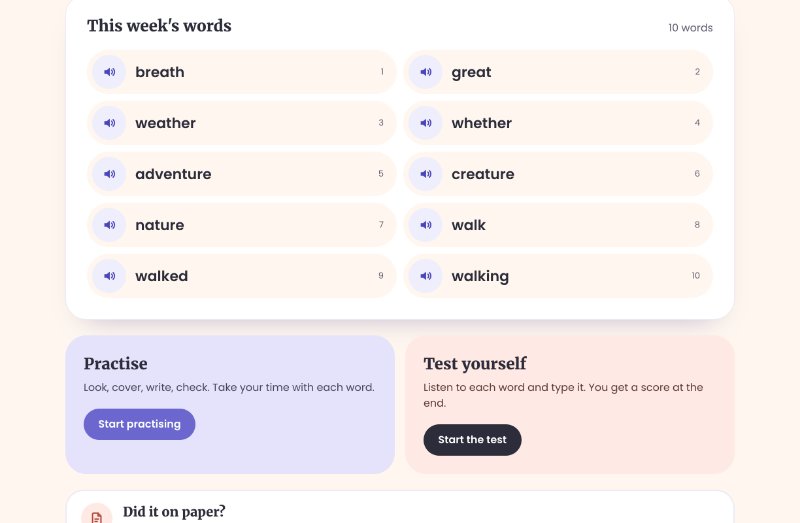
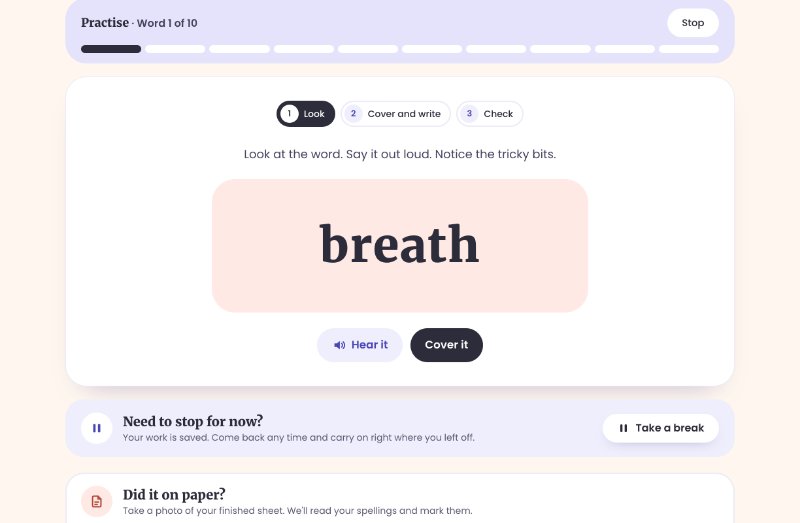
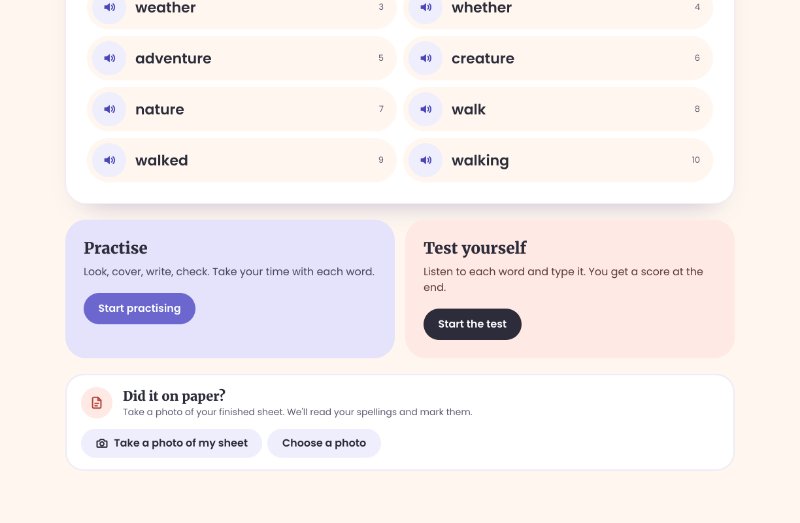
Tap a speaker to hear a word, in the friendly voice your teacher chose. Practise is look, cover, write, check: look at the word and say it, cover it and write it from memory, then check.
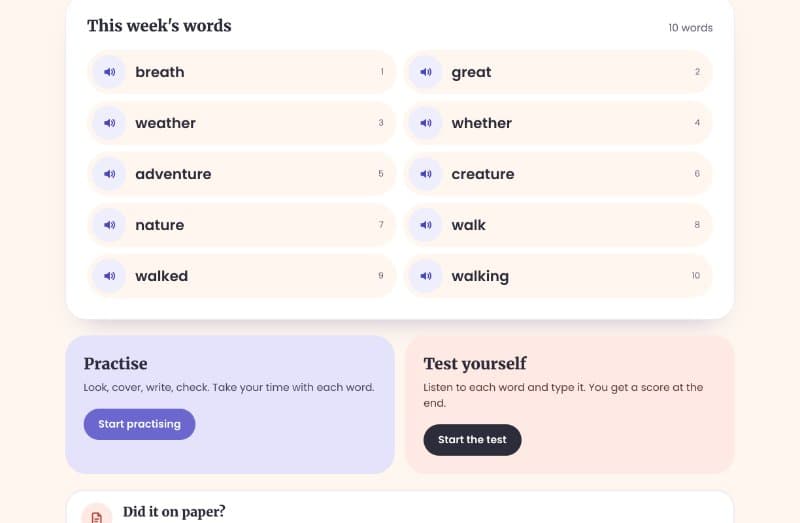
This week's words, each with a speaker 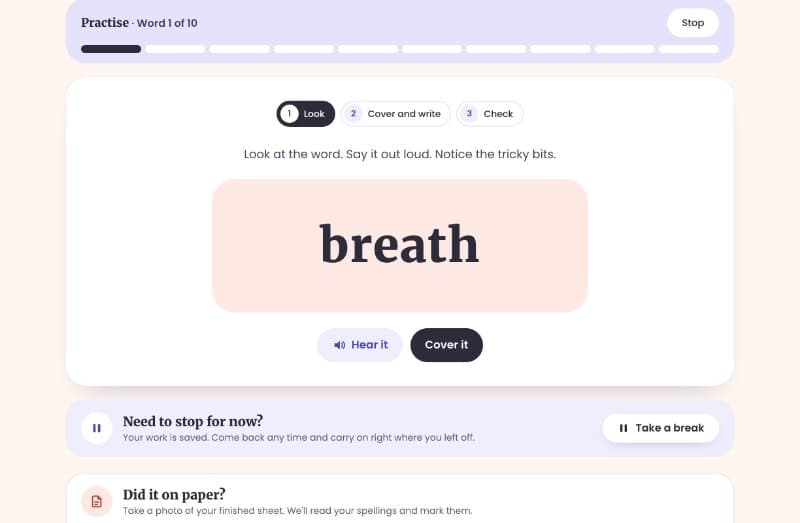
Practise: look, cover and write, check Spelling: test yourself
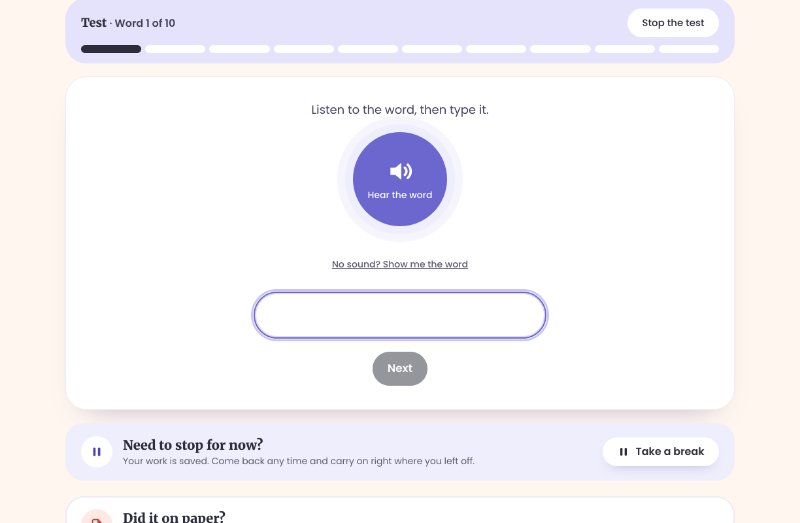
Test yourself says each word for you to type. Tap Hear the word to hear it again. No sound? Tap No sound? Show me the word.
You get a score at the end. You can take the test as many times as you like; your best score is the one that counts.
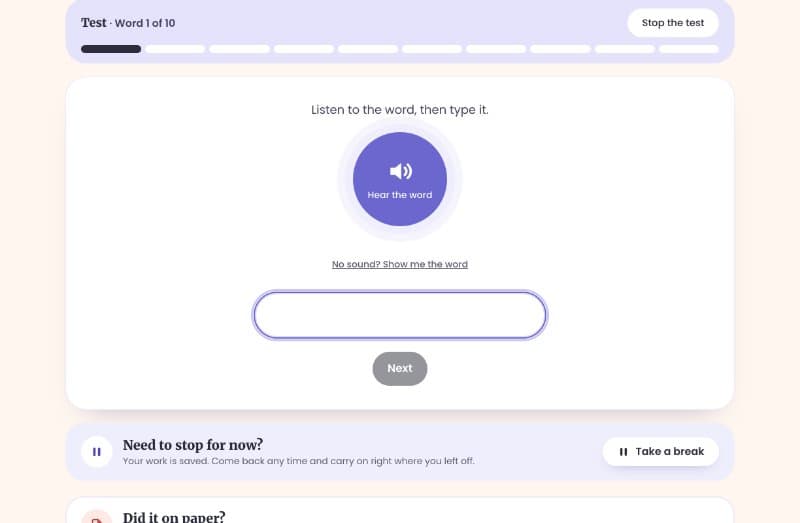
The spelling test: listen, then type the word Times tables: flash cards
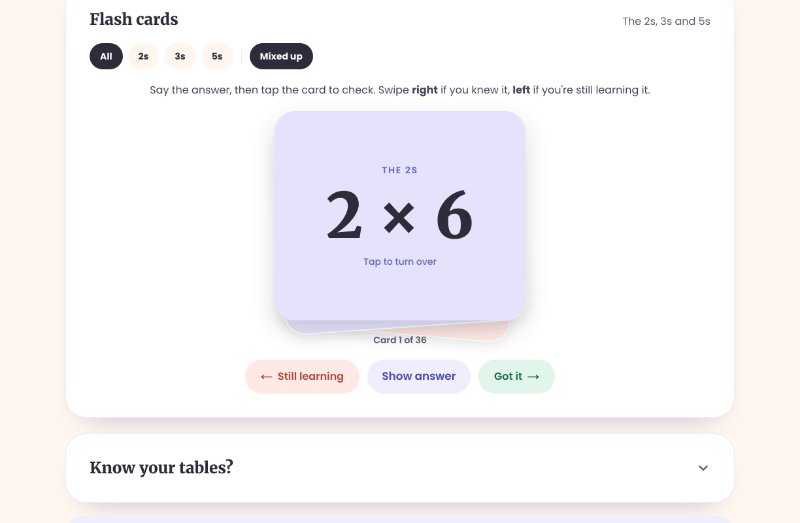
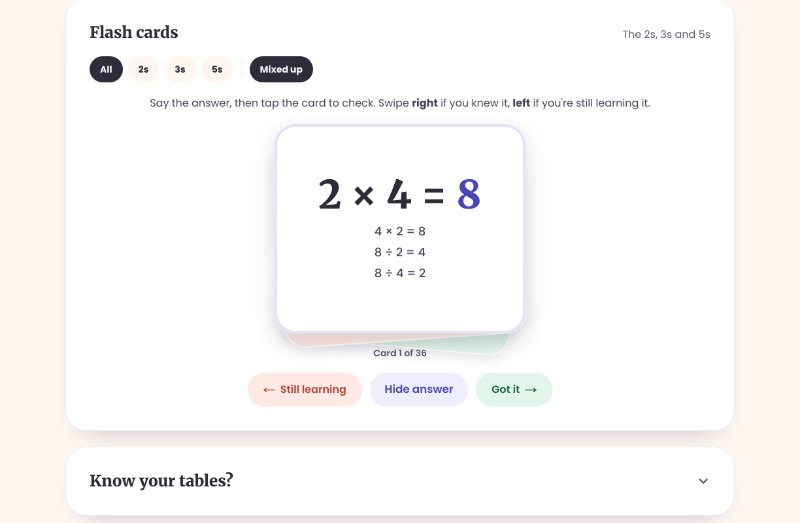
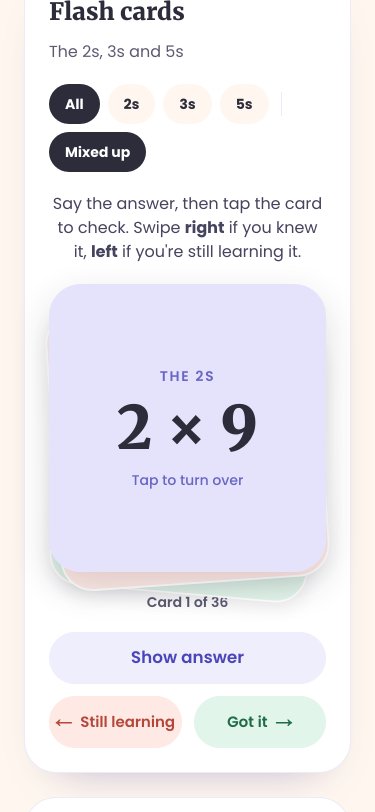
Times tables come as a pile of flash cards. Say the answer out loud, then tap the card to turn it over and check. The back shows the answer and the facts that go with it, like 8 × 5 = 40 and 40 ÷ 5 = 8.
Knew it? Swipe the card right (or tap Got it). Still learning it? Swipe it left. Pick one table or all of them, and at the end go round again with just the ones you're still learning.
Go through 10 cards and the task is ticked off: you collect Stack.
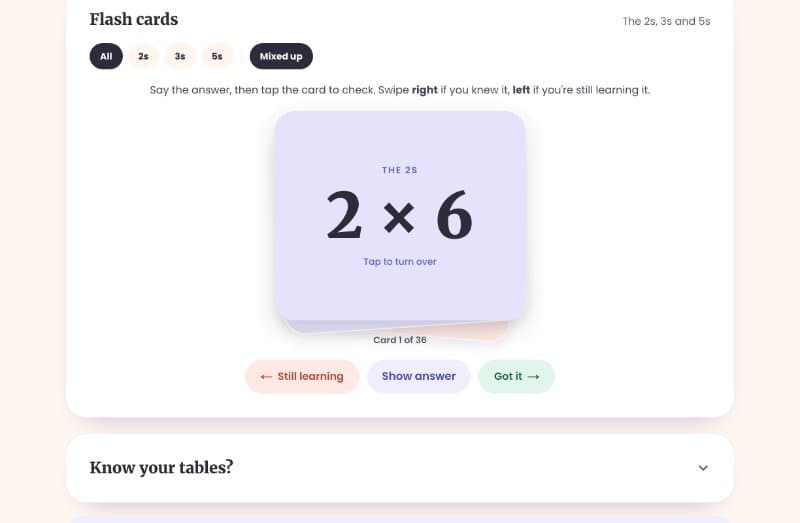
The top card of the pile 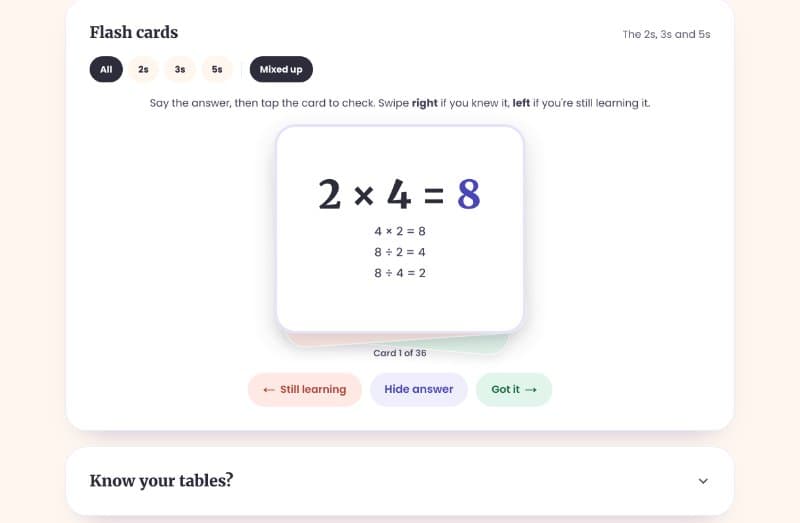
Turned over: the answer and its facts Maths: one question at a time, marked for you
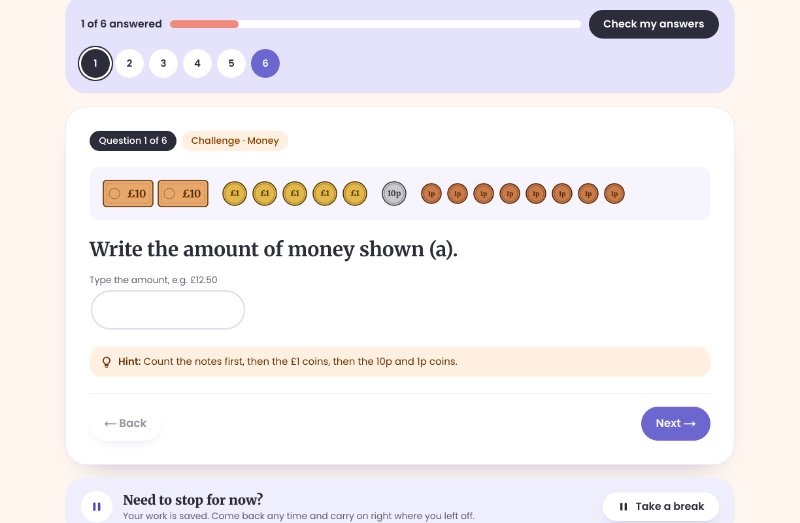
The row of numbers shows every question; answered ones turn purple. Type your answer and tap Next. Some questions have pictures to count, column sums have a box for each digit, and some have a hint or space for your working. On a phone, tap Jump to a question to see the numbers.
Tap Check my answers when you're done to see your score and which ones to look at again.
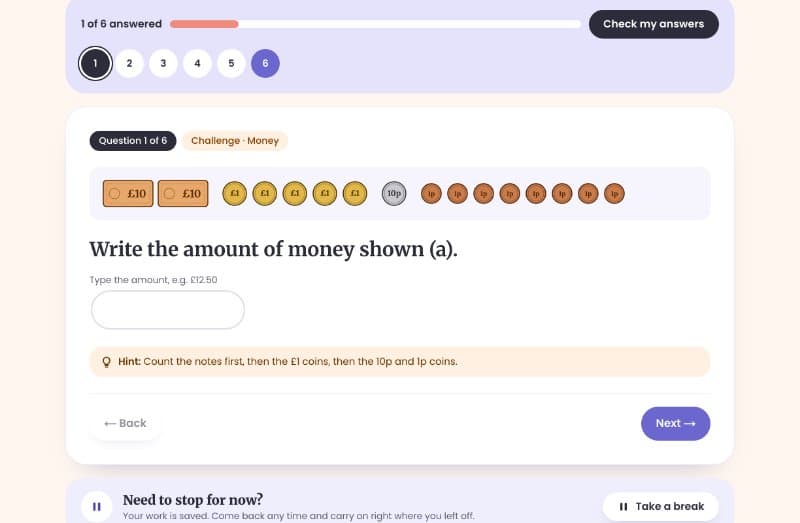
A maths question with a picture of money to count Reading: a little every day
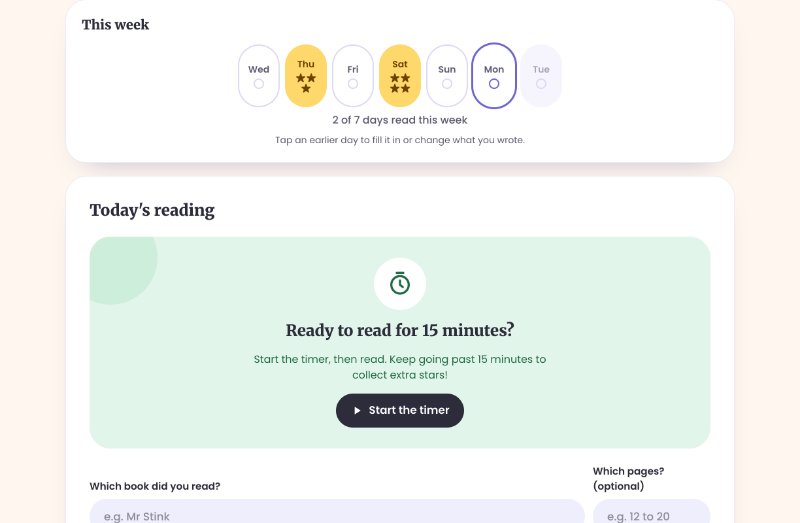
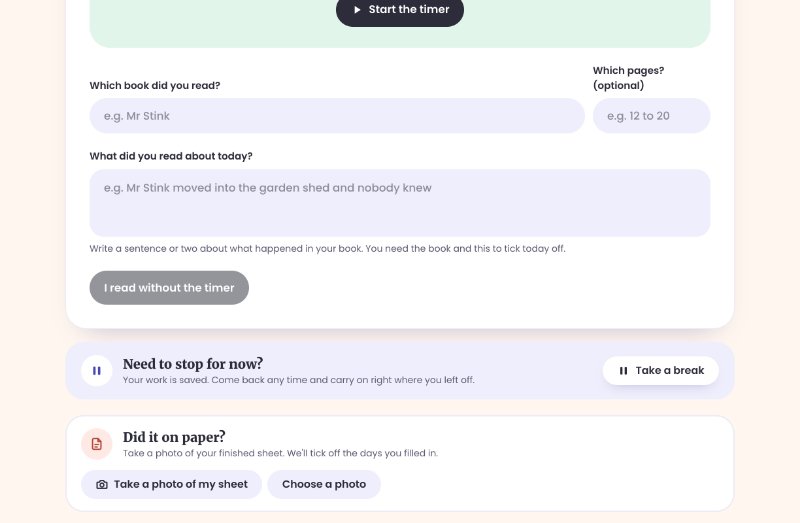
Reading is a daily task. The strip shows the seven days of the week; today is outlined and the days you've read show the stars you earned. Start the timer, read, then say which book you read and which pages, and write a sentence or two about what happened. Books you've logged before are suggested as you type.
Reaching the target time earns a star, and reading on earns more. Read on 5 of the 7 days and your reading is done for the week; read on the other days for extra stars.
Forgot to log a day? Tap an earlier day in the strip to fill it in, or to change the book, pages or what you wrote. Days you fill in later don't earn stars.
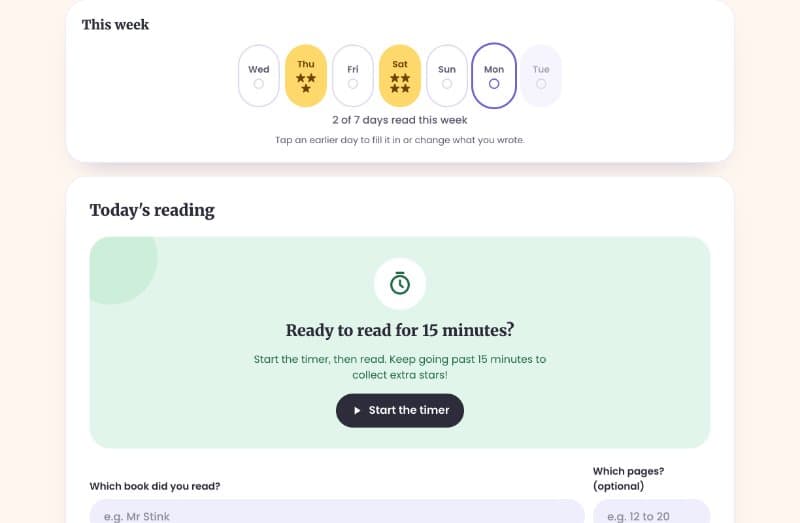
The week strip and the reading timer 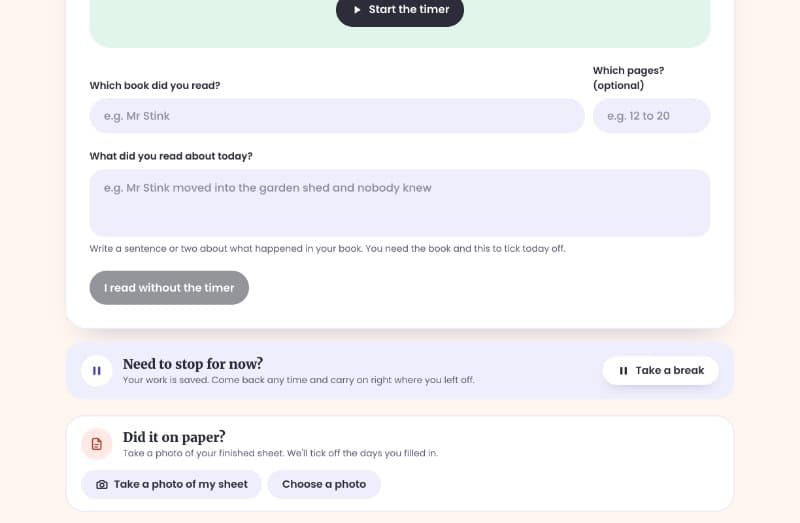
Which book, which pages and what happened Projects: show your work with a photo
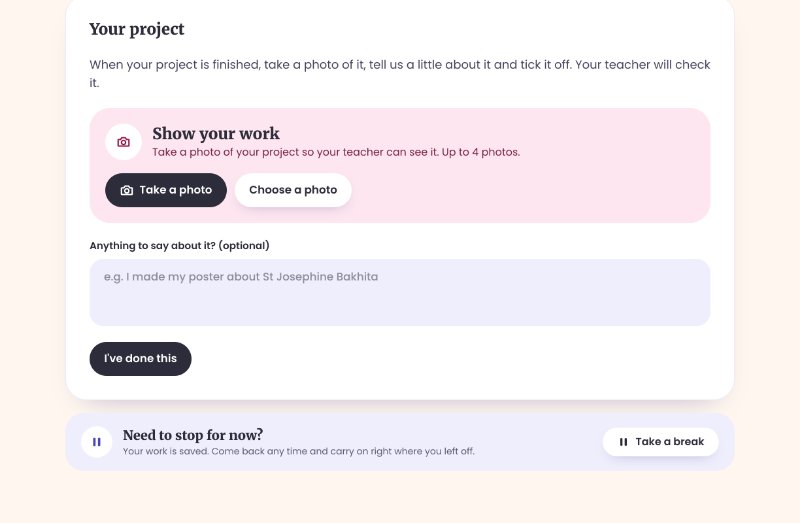
When your project is finished, tap Take a photo to snap it with the camera (or Choose a photo you already took). You can add up to 4. Write a sentence about it and tap I've done this. Your teacher sees the photos.
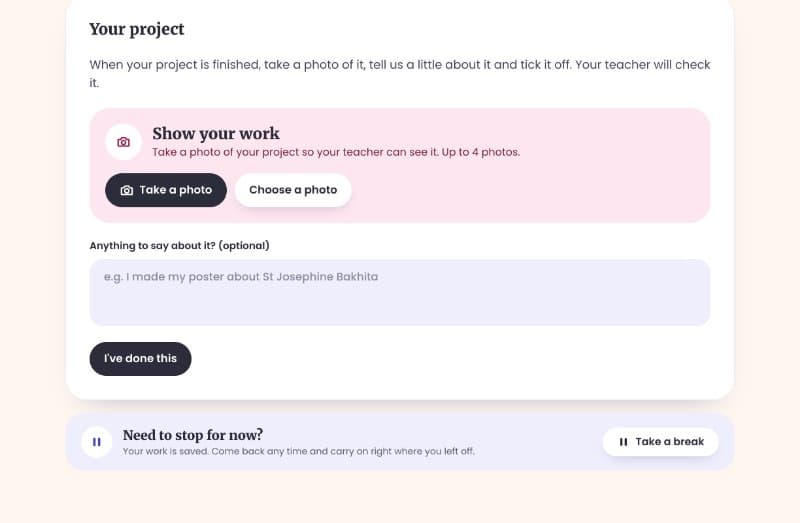
A project task with Show your work Print a sheet to work on paper
Tap Print at the top of any task and you get a paper version with your name already on it. Tap Print this sheet to print it, or ask a grown-up to.
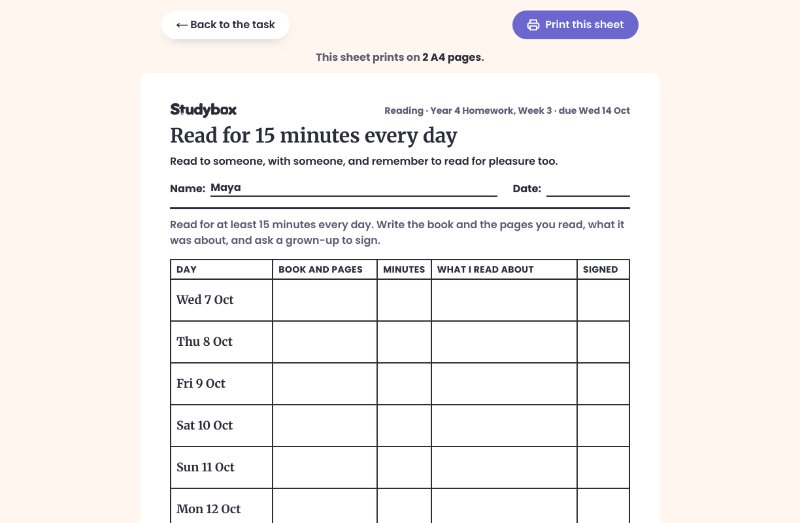
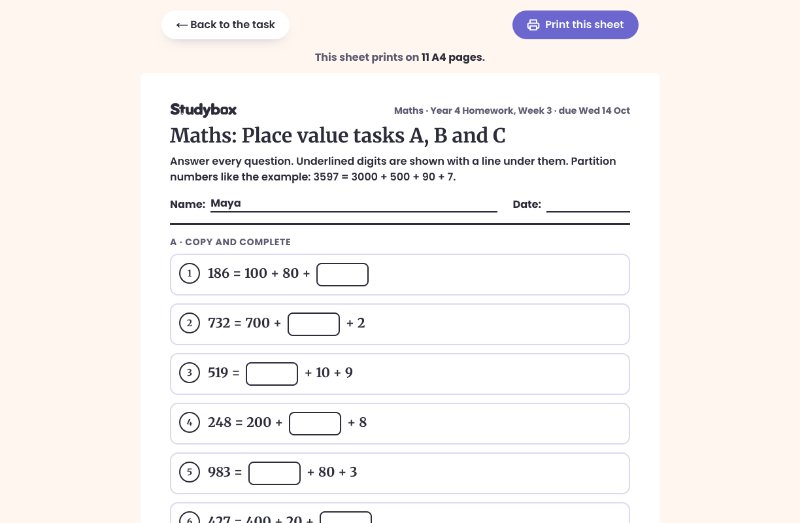
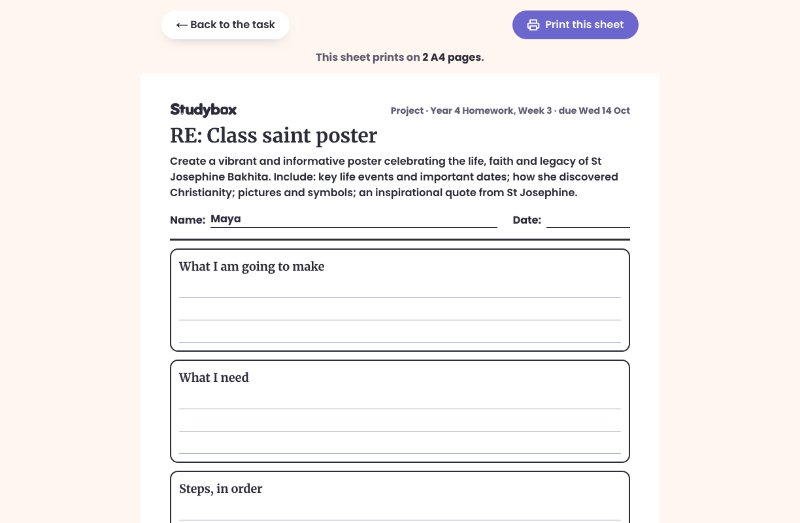
Each kind of task gets its own sheet: a look, cover, write, check table for spellings, the maths questions with boxes to write in, a reading log for the week with space for a grown-up to sign, a planner for a project, and a times-table grid.
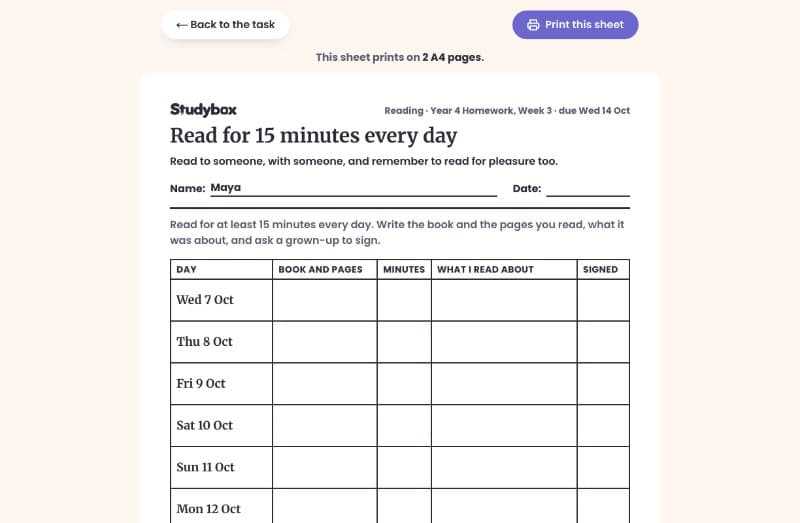
The reading log, one row per day 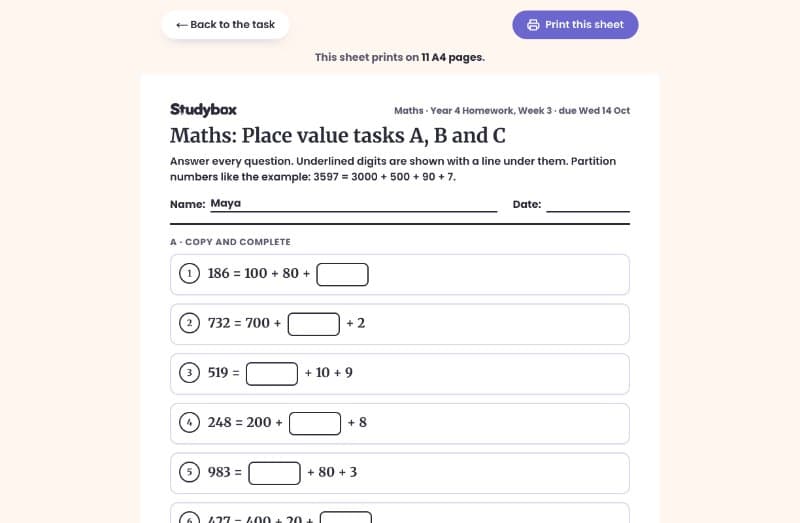
The maths sheet with boxes to fill in 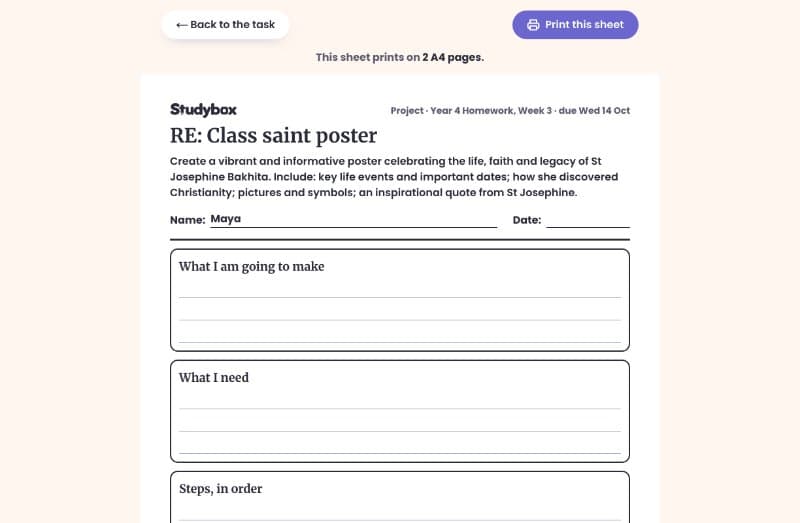
The project planner Did it on paper? Take a photo
Finished a sheet on paper? Open the task again and find Did it on paper? at the bottom. Tap Take a photo of my sheet. Studybox reads it: spellings are marked straight away, maths answers are filled in for you to check before you tap Check my answers, and reading-log days are ticked off. Your teacher sees the photo too.
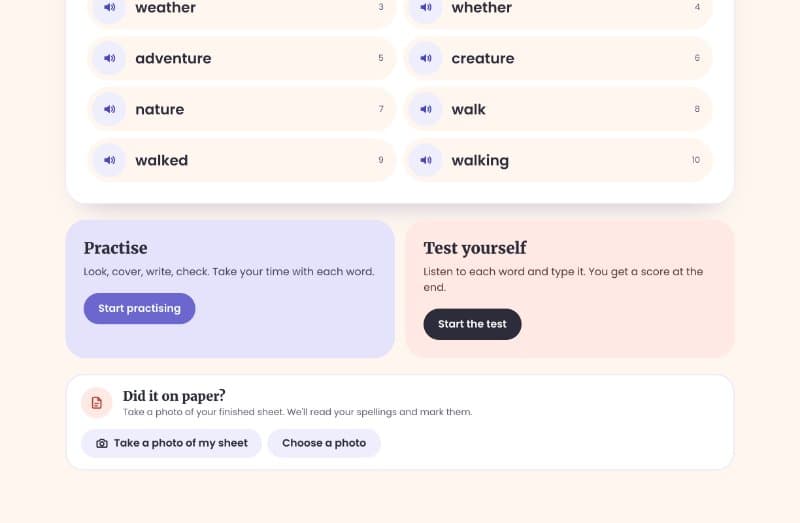
Did it on paper? at the bottom of a task Take a break, or finish
Every task has Take a break. Your work is saved and you carry on where you left off, even on a different device.
Tap Finished on the home page when you're done, so the next person can sign in.
On a phone or tablet
Everything works on a phone or tablet too: swipe the flash cards with your finger, and the buttons sit where your thumbs can reach them.
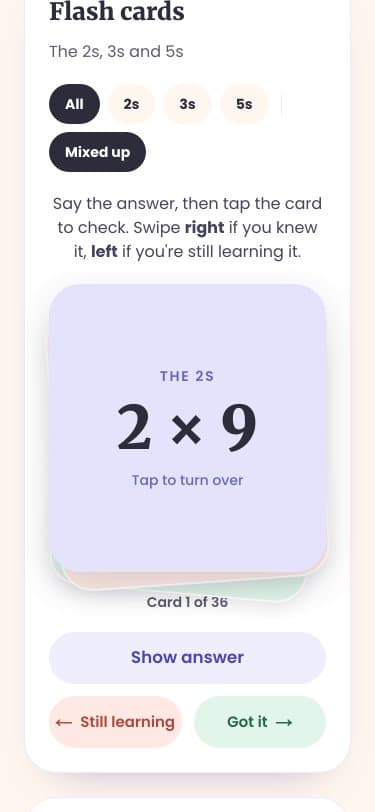
Flash cards on a phone
Something not covered here? Ask a teacher, or see the teachers' guide.